How to Turn Off Mouse Acceleration in Windows 11
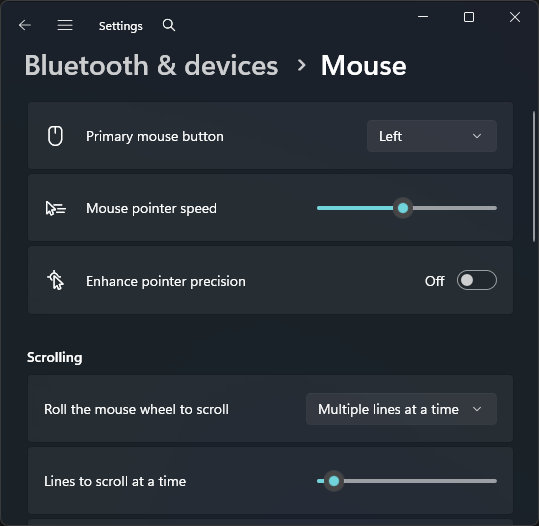
Turn off mouse acceleration in Windows 11 by opening Settings > Bluetooth & devices > Mouse > Additional mouse settings > Pointer Options, then unchecking Enhance pointer precision. Apply the change, keep your pointer speed consistent, and test your aim before changing DPI or in-game sensitivity again.
If you are building a clean FPS setup, this should be one of the first Windows settings you check. It pairs with the broader best mouse settings for gaming because acceleration can make every other sensitivity number harder to trust.
Key Takeaways
- In Windows, the setting most gamers mean by “mouse acceleration” is
Enhance pointer precision.- Turn it off from the legacy Mouse Properties window under the
Pointer Optionstab.- Keep pointer speed consistent after changing it, especially if you compare DPI or eDPI.
- Raw input helps in supported games, but clean Windows settings still matter for menus, launchers, desktop use, and older titles.
The Short Answer: Turn Off Enhance Pointer Precision
For most FPS games, turn off Enhance pointer precision. The goal is simple: make mouse movement easier to predict. When acceleration is active, faster swipes can move the pointer farther than slower swipes over the same physical distance.
That behavior can feel fine for desktop work. It can even help some users cross a large monitor with less hand movement. For aim training, though, it adds another variable. You want a 10 cm swipe to mean the same thing every time, not a different result because your hand moved faster.
Microsoft’s own Windows accessibility help confirms that Windows 11 mouse options live under Settings > Bluetooth & devices > Mouse, with additional pointer options available through the older Mouse Properties window. That older window is where the acceleration checkbox lives.
This does not mean every game is affected the same way. Modern FPS games often use raw input paths that read mouse movement more directly. Still, disabling acceleration keeps the rest of your setup cleaner and easier to diagnose.
How to Turn Off Mouse Acceleration in Windows 11
Use the normal Windows interface first. You do not need a registry edit, a random "gaming optimizer," or a batch file for this.
- Press
Windows + Ito open Settings. - Select
Bluetooth & devices. - Select
Mouse. - Scroll down and select
Additional mouse settings. - Open the
Pointer Optionstab. - Under Motion, uncheck
Enhance pointer precision. - Select Apply.
- Select OK.
After that, the pointer may feel slower or more direct. Do not immediately crank DPI or in-game sensitivity to compensate. Test in a practice range first.
If you also changed pointer speed, write that down. The point is not to find a magical Windows value. The point is to stop changing three things at once and then guessing what helped.
Why Mouse Acceleration Feels Bad for Aim Testing
Mouse acceleration changes the relationship between physical movement and on-screen movement. Without acceleration, a given swipe distance should produce a more predictable result. With acceleration, the speed of the swipe can change the output.
That makes sensitivity tests messy. Imagine you are testing whether 800 DPI and 0.35 sensitivity feels better than 800 DPI and 0.32. If acceleration is involved, your test is no longer only about sensitivity. It is also about how quickly you moved your hand during each attempt.
This is why many FPS players prefer a boring setup:
| Setting | Aim-testing preference |
|---|---|
| Windows acceleration | Off |
| In-game mouse smoothing | Off, when available |
| Raw input | On, when available |
| DPI | One stable value |
| In-game sensitivity | Adjusted after DPI is stable |
Predictability matters more than a setting sounding advanced. If you want to compare your final aim speed, use eDPI after your Windows and mouse software settings are stable. The guide on finding your perfect mouse sensitivity for Valorant and CS2 gives you a better testing routine than changing settings mid-match.
Does Raw Input Make This Setting Irrelevant?
Raw input can reduce the impact of Windows pointer behavior in games that support it, but it does not make Windows settings irrelevant everywhere. Microsoft Learn explains that WM_INPUT messages can be read directly from the Human Interface Device stack, while standard mouse pointer messages receive Windows pointer behavior such as acceleration.
In gamer language: raw input helps the game listen to mouse movement instead of only watching the desktop cursor. That is useful for FPS camera movement.
But your PC still has many places where raw input may not apply:
- Game menus
- Launchers
- Older games
- Aim trainers with different input modes
- Desktop DPI tests
- Browser tools that track the desktop cursor
- Windows cursor movement
- Overlay controls
That is why the practical advice stays the same. Turn off Enhance pointer precision, enable raw input in games that support it, and then test. You can read the deeper breakdown in raw input explained for FPS games.
What About Windows Pointer Speed?
Windows pointer speed controls how fast the desktop pointer moves. It is not the same thing as mouse DPI. DPI comes from the mouse sensor. Pointer speed is Windows scaling the cursor movement it receives.
For gaming, the safest move is to choose one Windows pointer speed and leave it alone. Many players keep the classic neutral Control Panel position because it makes old advice easier to compare, but Windows 11 also exposes pointer speed in the modern Settings app.
If you are not sure what to use, set a comfortable desktop speed, turn acceleration off, and stop touching it. Then tune your game with DPI and in-game sensitivity.
For a dedicated walkthrough, use Windows pointer speed for gaming. That guide explains why pointer speed, DPI, and eDPI are separate settings even though they all affect how movement feels somewhere.
How to Test Whether Acceleration Is Off
You can do a quick sanity check without installing anything.
- Place your mouse at the left side of your mousepad.
- Move it slowly to the right edge and note where the cursor lands.
- Move the mouse back to the start.
- Repeat the same physical swipe faster.
- Compare the result.
This is not a lab-grade test. Your hand will not move perfectly straight, and the Windows desktop is not an FPS camera. Still, it can reveal obvious acceleration or weird mouse software behavior.
For a cleaner sensitivity workflow, test in the actual game you play. Stand in one spot, aim at a fixed point, and move your mouse a measured distance. If the same physical movement produces different camera turns depending on swipe speed, check acceleration, smoothing, raw input, and mouse software profiles.
Basic cursor-distance tests are less reliable when acceleration changes the pointer path. Mouse DPI Analyzer requests raw mouse input instead, so you can use it without disabling Enhance pointer precision. You still need to move the mouse the entered physical distance accurately and repeat the run for a stable median.
Common Mistakes After Turning It Off
The biggest mistake is changing too much right away. If your pointer suddenly feels slow, resist the urge to change Windows speed, DPI, and game sensitivity in the same five minutes.
Fix one layer at a time:
- Disable
Enhance pointer precision. - Confirm your mouse DPI in software.
- Keep Windows pointer speed stable.
- Enable raw input in supported games.
- Tune in-game sensitivity.
- Save the profile.
Another common mistake is assuming every game uses input the same way. Some games expose raw input. Some have mouse smoothing. Some older games can still be affected by desktop behavior more than you expect. Use the game’s own settings menu and test in a repeatable scenario.
Finally, do not edit the Windows registry for normal mouse acceleration changes. Windows Central documents registry-based pointer speed changes, but also warns that registry edits can cause serious problems when done wrong. For gaming mouse setup, the normal Settings and Mouse Properties screens are enough.
Should Anyone Keep Mouse Acceleration On?
Some players like acceleration. If you have trained with it for years, you may not want to change before a tournament or ranked grind.
The problem is Windows acceleration is not usually the controlled, game-specific acceleration curve competitive players are talking about. It is a desktop pointer behavior. If you are trying to build a repeatable FPS setup from scratch, turning it off is the cleaner baseline.
Use acceleration only if you know why you want it, can reproduce the setting, and have tested it against your normal aim routine. If the reason is “someone said it boosts aim,” skip it.
A Clean Setup After Disabling Acceleration
Once Enhance pointer precision is off, build the rest of your setup around stable numbers.
| Layer | Clean starting point |
|---|---|
| Mouse DPI | 800 DPI or another single known stage |
| Windows acceleration | Off |
| Windows pointer speed | One consistent value |
| Raw input | On in supported FPS games |
| Game sensitivity | Tuned with eDPI |
| Mouse software | Save one main profile |
This setup will not make your aim perfect overnight. It will make your settings easier to understand. That is the whole point.
If your mouse still feels strange after this, check DPI stages, polling rate, USB receiver placement, and in-game smoothing. The acceleration checkbox is only one part of mouse configuration, but it is an important one to get out of the way early.
FAQ
Should I turn off mouse acceleration in Windows 11 for gaming?
Most FPS players should turn it off. It makes pointer movement more predictable and removes one variable from sensitivity testing.
Is Enhance pointer precision the same as mouse acceleration?
Yes, in normal Windows gaming discussions, Enhance pointer precision is the Windows mouse acceleration setting players are talking about.
Does raw input ignore Enhance pointer precision?
Raw input can let supported games read mouse movement more directly, but Windows acceleration can still affect desktop pointer behavior, menus, older games, and some testing tools.
Should I change registry mouse settings?
No, not for a normal gaming setup. Use Windows Settings and Mouse Properties. Registry edits are risky and unnecessary for turning off acceleration.
Sources
- Microsoft Support - Make your mouse, keyboard, and other input devices easier to use
- Microsoft Learn - Taking Advantage of High-Definition Mouse Movement
- Microsoft Learn - Raw Input
- Windows Central - How to change mouse speed on Windows 11 or Windows 10